How to Bulk Scrape Google & Bing Autocomplete Keywords ?
Table Of Contents
Want a fast, free way to harvest hundreds of long-tail keywords from Google, Bing, YouTube, and other search engines without writing a single line of code? Keyword Scraper by xRisky is a lightweight Windows EXE that does exactly that. Paste in your seed keywords, select the search engines you want, and the tool will pull autocomplete suggestions in bulk. In this guide, you will learn how to download, install, and use it to build keyword lists for SEO, content marketing, and PPC campaigns.
In short:
- Keyword Scraper is a free Windows desktop app that scrapes autocomplete suggestions from Google, Bing, Yahoo, Yandex, DuckDuckGo, YouTube, Pinterest, Ask, and Brave.
- You can paste seed keywords or upload a txt file, choose your engines, set threads/timeout, and export results.
- It supports proxies, multi-threading, retry logic, and one-click export to a CSV-like results grid.
- Best for SEO keyword research, content gap analysis, and finding long-tail PPC keywords fast.
What Is Keyword Scraper ?
Keyword Scraper is a no-install Windows EXE tool designed for bulk autocomplete keyword scraping. Instead of manually typing “best coffee maker” into Google and copying each suggestion, the tool automates the process across multiple search engines at once.
It can provide nine different search values returned by different browsers. :
- Bing
- Yahoo
- Yandex
- DuckDuckGo
- YouTube
- Ask
- Brave
The interface is split into a ribbon toolbar, a keyword input panel, a live status panel, and a results panel. You can run it with default settings, or tune it with custom threads, timeout, retries, and proxy support.
Why Use Autocomplete Scrapers for Keyword Research?
Autocomplete suggestions are not random. They reflect real queries that users type every day. This makes them an excellent source of:
- Long-tail keywords with lower competition
- Question-based keywords for blog outlines
- PPC keyword ideas with clear commercial intent
- Content gaps your competitors may have missed
Because the data comes directly from search engines, you skip the guesswork and work with query data that the platform itself prioritizes.
Download and Install the Keyword Scraper Tool
Step 1: Download the EXE file
The software is a single exe file named Keyword Scraper.exe. Save it to a location you can easily access, such as your desktop or a dedicated tools folder.
File: Keyword Scraper.exe
Size: ~47 MB
Type: Windows desktop application (no installer required)
Read Download guide and download links
Step 2: Run the application
Double-click the EXE to launch it. The first time you run it, Windows may show a SmartScreen warning because the app is not signed by a major publisher. Click More info → Run anyway to open it.
No installation is needed. The app window title is Keyword Scraper
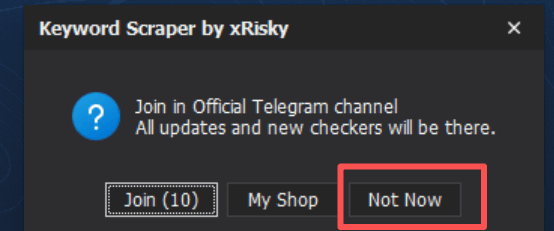
On your first launch, select “Not Now” to enter the interface.
Keyword Scraper Interface Overview
When you open the app, you will see four main areas:
1. Ribbon Toolbar (Top)
The ribbon contains the main controls and settings.
| Section | Controls | Purpose |
|---|---|---|
| Actions | Start, Stop, Results | Begin scraping, cancel the run, or view results. |
| Performance | Threads, Timeout, Retry | Control how fast and aggressively the tool scrapes. |
| Search Engines | Google, Bing, Yahoo, Yandex, DuckDuckGo, YouTube, Pinterest, Ask, Brave | Choose which autocomplete sources to query. |
| Proxy | Use Proxy, Proxy, Proxy Type | Route requests through a proxy for stability or location testing. |
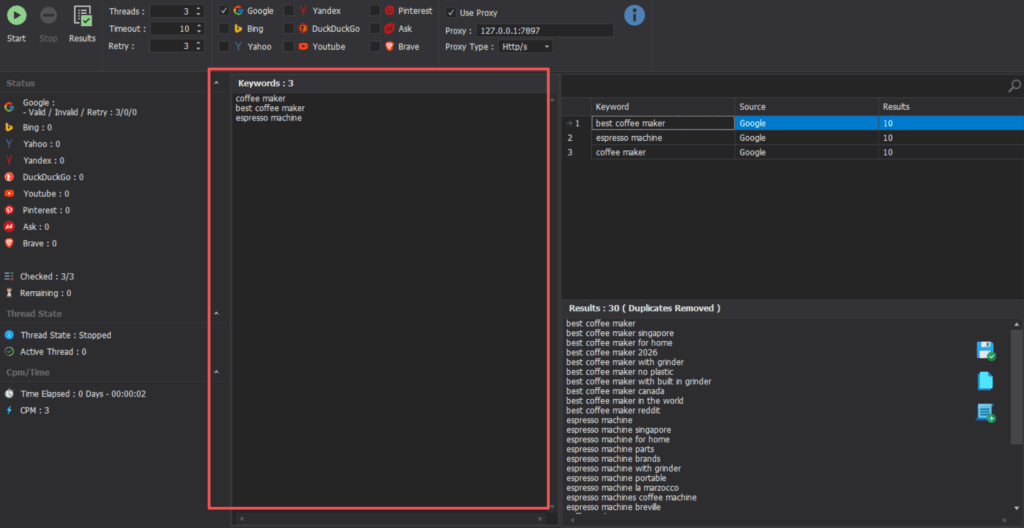
2. Keyword Input Panel
This is where you enter your seed keywords. You have three options:
- Type or paste keywords directly into the large text box
- Click Browse Files to load a
.txtfile - Drag and drop a keyword file into the drop zone
Use one keyword per line. For example:
coffee maker
best coffee maker
espresso machine
3. Status Panel (Left Sidebar)
This shows the live progress of your scrape.
- Status: Counts per search engine (e.g., Google: 0, Bing: 0)
- Thread State: Current thread status and active thread count
- Cpm/Time: Elapsed time and CPM (checks per minute)
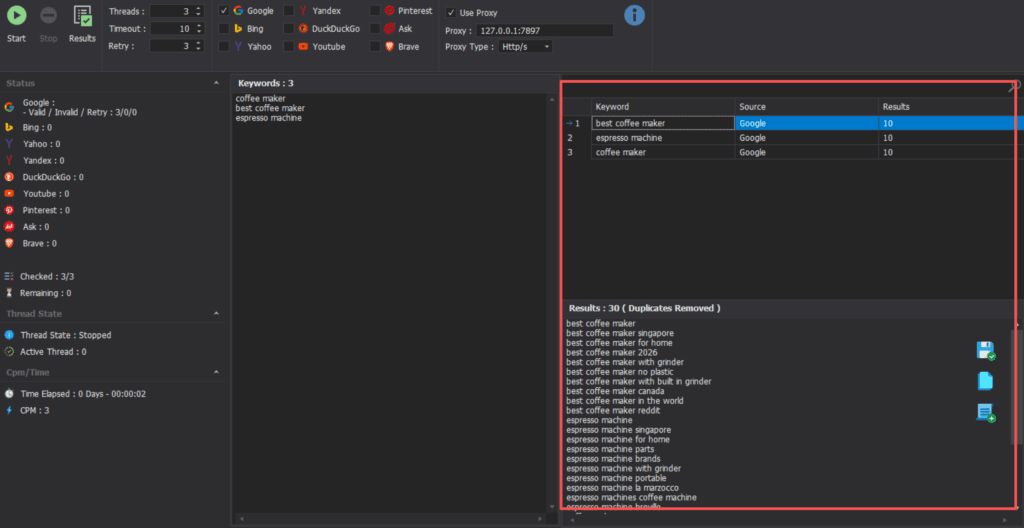
4. Results Panel (Right Side)
Results appear in a table with three columns:
- Keyword: The scraped autocomplete suggestion
- Source: The search engine it came from
- Results: The platform it was generated on
Below the table is a text box for raw keyword output, plus buttons to Add Keywords, Copy Keywords, or Save Keywords.
How to Scrape Autocomplete Keywords: Step-by-Step
Step 1: Load your seed keywords
Open the tool and paste your seed keywords into the input panel. Each keyword should be on its own line. Alternatively, click Browse Files and select a .txt file.
Step 2: Select your search engines
In the ribbon, check the boxes for the search engines you want to scrape. For most SEO use cases, the best combination is:
- Google (primary search)
- Bing (great for long-tail and question queries)
- YouTube (video content ideas)
- DuckDuckGo (alternative search patterns)
You can select all nine engines if you want the broadest possible dataset.
Step 3: Adjust performance settings
Set your preferred values for:
- Threads: Higher numbers run more requests in parallel. Start with 5–10 and increase if your connection is stable.
- Timeout: How long the tool waits for a response. 30–60 seconds is a safe default.
- Retry: How many times the tool retries a failed request. 3 retries is usually enough.
Actually, it’s best to just accept everything as it is.
Step 4: Click Start (Top left corner)
Click the Start button in the ribbon. The tool will begin sending queries to each selected search engine and collecting autocomplete suggestions.
You can watch the status panel update in real time. It will show:
- Number of suggestions found per engine
- Active thread count
- Elapsed time and CPM
Step 5: Review and export results
When the scrape finishes, results appear in the table on the right. You can:
- Copy Keywords to paste into a spreadsheet or keyword planner
- Save Keywords to export as a text file
- Add Keywords to move selected results back into the input panel for a deeper scrape
The results table makes it easy to sort by source and identify which search engine generated each keyword.
Advanced Settings: Threads, Proxy, and Retry
Multi-threading
The Threads setting controls how many queries run at the same time. More threads mean faster scraping, but also higher risk of rate limits or temporary blocks from search engines.
Recommended settings:
| Use case | Threads | Timeout | Retry |
|---|---|---|---|
| Small test (<50 keywords) | 3–5 | 30 | 3 |
| Medium batch (50–500 keywords) | 10–20 | 60 | 3 |
| Large batch (500+ keywords) | 20–50 | 90 | 5 |
If you see many failures, lower the thread count or increase the timeout.
Proxy support
If you are scraping at scale, enable Use Proxy and enter your proxy details in the Proxy field. Select the correct Proxy Type from the dropdown. This helps:
- Avoid IP-based rate limits
- Test autocomplete results from different locations
- Distribute requests across multiple IPs
Use only proxies you have permission to use. Rotating residential or datacenter proxies are common choices for search scraping.
Retry logic
The Retry value tells the tool how many times to attempt a failed request. This is useful when scraping engines that occasionally return blank results or time out. Set it to 3–5 for production runs.
What to Do With Your Keyword Output
After exporting your keyword list, you can use it for several SEO and marketing tasks:
1. Build a content calendar
Group keywords by topic and create blog posts or landing pages around each cluster. For example, if you scraped questions like “how to clean a coffee maker” and “best coffee maker for beginners,” those become two separate article ideas.
2. Expand PPC keyword lists
Autocomplete suggestions often reveal low-competition long-tail keywords with clear intent. Add them to Google Ads or Bing Ads campaigns as phrase or exact match keywords.
3. Find internal linking opportunities
Map scraped keywords to existing pages on your site. If a page already ranks for a related term, add an internal link using the new keyword as anchor text.
4. Identify search intent
Sort keywords by question words (who, what, where, when, why, how, best, vs, review, buy). This helps you understand whether the searcher wants information, comparison, or purchase content.
Tips and Best Practices
- Start small. Run a test with 10–20 seed keywords before launching a large batch.
- Use clean seed keywords. Avoid punctuation-heavy inputs. One keyword or phrase per line works best.
- Mix broad and specific seeds. Combine short head terms like “coffee maker” with long-tail seeds like “best coffee maker under $100.”
- Filter by source. Compare Google vs. Bing suggestions to spot platform-specific trends.
- Respect rate limits. Aggressive scraping can trigger blocks. Use proxies and moderate thread counts for sustained use.
- Deduplicate results. After exporting, remove duplicates in Excel, Google Sheets, or a keyword tool.
- Save your seed list. Keep your original
.txtfile so you can re-run the scrape later and compare results over time.
Common Issues and Fixes
Tool returns zero results
- Check your internet connection
- Make sure at least one search engine is selected
- Increase the timeout and retry values
- Try a different seed keyword
- If using a proxy, verify the proxy details and type
Tool freezes or crashes
- Lower the thread count
- Reduce the number of selected search engines
- Restart the application and try again with a smaller batch
Results look incomplete
- Some engines rate-limit aggressively. Use proxies or spread the work across multiple sessions.
- Autocomplete results can vary by region and search history. Use a clean proxy if you need consistent results.
FAQ
Is Keyword Scraper ?
Yes. The version reviewed here is a free EXE with no license key or subscription required.
Do I need to install it?
No. It is a portable EXE. Just double-click to run. You may need to bypass Windows SmartScreen the first time.
Does it support Google and Bing?
Yes. Google and Bing are both supported, along with Yahoo, Yandex, DuckDuckGo, YouTube, Pinterest, Ask, and Brave.
Can I use a proxy?
Yes. The ribbon has a Use Proxy checkbox, a proxy input field, and a Proxy Type dropdown.
What file format does the output use?
Results are displayed in an in-app table and can be copied or saved as plain text. You can paste the output into a spreadsheet for further analysis.
Is it safe?
Because it is an unsigned executable, Windows may warn you before running it. Only run EXE files from sources you trust. Keep your antivirus active and scan the file before opening.For details, please see this download guide.
Conclusion
Keyword Scraper by xRisky is a practical, no-cost tool for anyone who needs bulk autocomplete keyword data quickly. It supports nine major search engines, offers thread and proxy control, and exports results in a simple, usable format. Whether you are planning a content calendar, expanding a PPC campaign, or hunting for long-tail SEO opportunities, this tool can speed up your keyword research workflow significantly.
Download the EXE, load your seed keywords, select your engines, and click Start. Within minutes, you will have a fresh list of keyword ideas pulled directly from the search engines your audience uses.
Ready to build your keyword list? Open Keyword Scraper, paste your first seed keywords, and run your first scrape today.